Setting up double opt-in
Last updated:
The double opt-in subscription method can be used on any form, and is activated and set up in the Settings area.
What is double opt-in?
Double opt-in is a two-step registration procedure for newsletters and other email services. After completing a registration form, users must then verify their email address by clicking a confirmation link that they are sent in an email. Only then is the registration process complete.
Why is double opt-in important?
- Fulfils legal requirements: According to the EU General Data Protection Regulation (GDPR), email recipients must actively and expressly agree to receive advertising mail. The double opt-in method automatically records this consent.
- Protects against misuse: The procedure prevents third parties or bots registering an email address without the consent of the account owner.
- Better data quality: Only verified email addresses subscribe to the service.
Activating double opt-in
To activate double opt-in for a form, proceed as follows.
- Open the form in the Editor.
- Click Settings at the top of the screen.
This takes you to the Settings area for the form. - In the settings, scroll down to Double opt-in and move the slider to the right to activate double opt-in for this form.
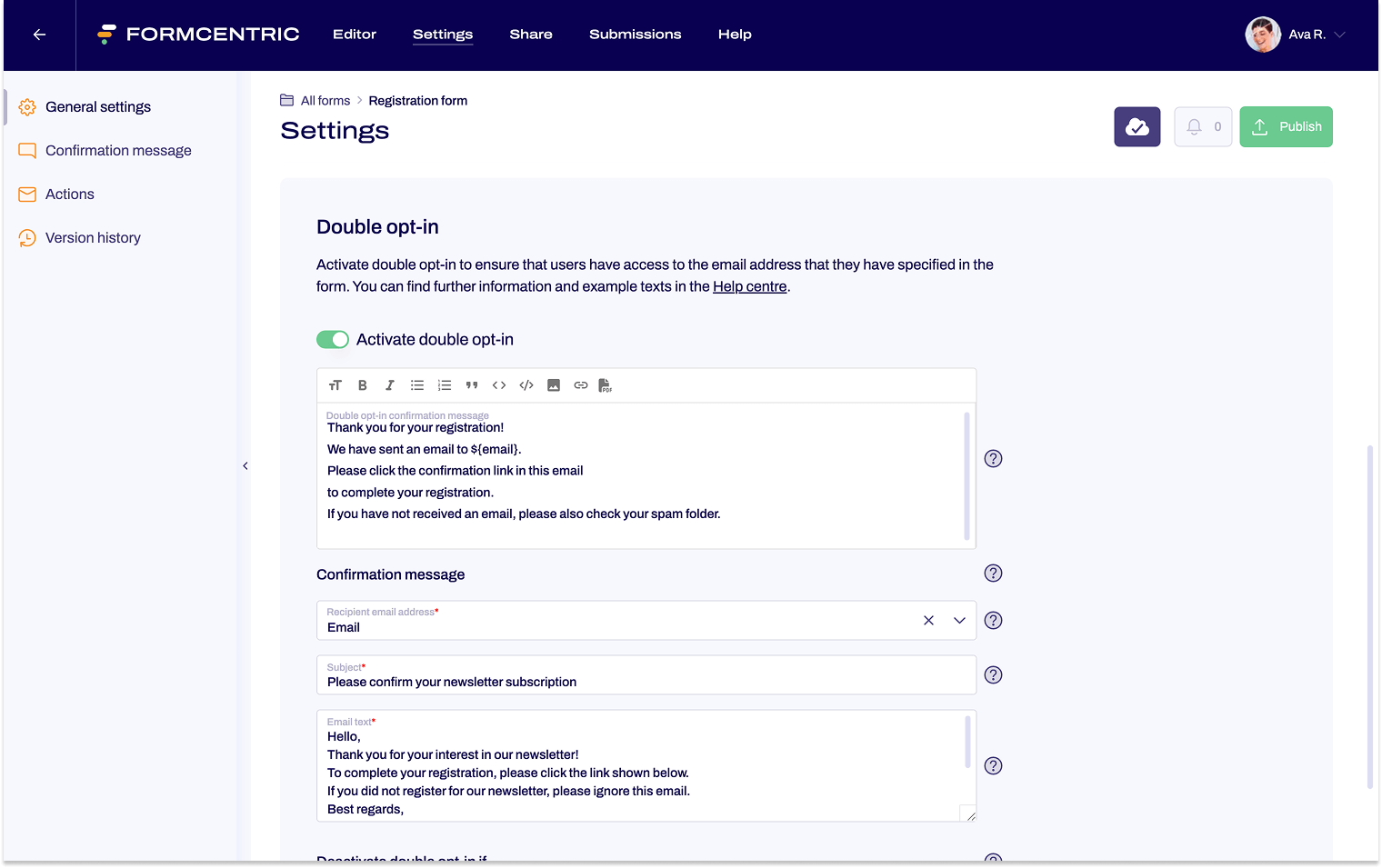
Configuration options
Property |
Description |
| Double opt-in confirmation message | A page is shown to users after the form is submitted. Enter a piece of text to be displayed on this page. Tell your users that an email has been sent to the email address that they entered and that they need to use the confirmation link in the mail. |
| Recipient email address | Select the form field into which users enter their email address. The form field must be a required field. The confirmation mail will be sent to the email address entered into this field. |
| Subject | Enter the subject for the confirmation mail. |
| Email text | Enter the body text for the email. The confirmation link is automatically added at the end of the message. |
| Confirmation message |
Enter a piece of text that confirms the successful completion of the user’s registration. |
Linking double opt-in activation to conditions
If you only need double opt-in in certain circumstances, you can use a condition to specify whether or not the procedure should be used.
Example: Subscribing to newsletters
Let’s assume that users can use your form to subscribe to a newsletter. You have set up your form with a single choice field (‘Newsletter registration’) with two options (‘Yes’ and ‘No’), and have made this a required field. The double opt-in procedure should only be used for newsletter registration and should otherwise be skipped.
Setting up the condition:
- Scroll down to the area Deactivate double opt-in if.
- Click New trigger.
- Select the single choice field Newsletter registration.
- And then If → is not selected.
- And then Value → the option Yes.
With this condition set, only users that have registered for the newsletter (‘Yes’ selected) will receive a double opt-in confirmation mail. If your user selects the No option, the procedure remains deactivated.
Other sample texts
For events/webinars
For contact forms